
Reels cover: size, format and how to make one with AI
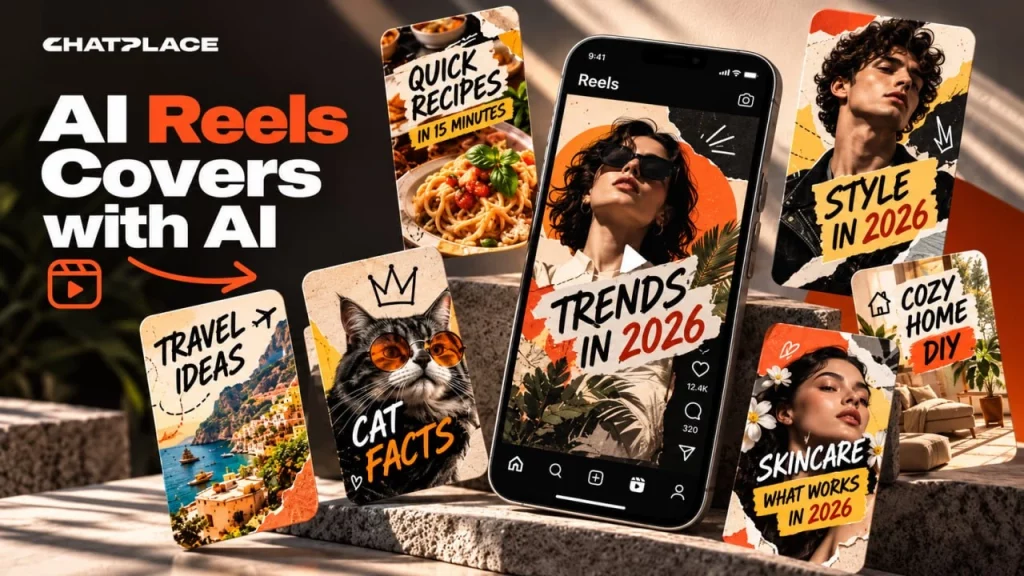
A Reels cover is the 9:16 frame people see in your profile grid and in the feed before the video plays, and the Instagram Help Center recommends 420 × 654 pixels for it. You can’t change the cover after upload, so prepare it as a separate image in advance. This guide is for creators, experts and small businesses: which format to pick, what to write and how to make 3 versions with AI.
Reels cover size and format in 2026
A Reels cover is made in a vertical 9:16 format, and the recommended size in the Instagram Help Center is 420 × 654 pixels. The Reel itself can be 9:16 or horizontal 1.91:1, with a minimum video resolution of 720 pixels.
| Setting | Value | Source |
|---|---|---|
| Video aspect ratio | 9:16 or 1.91:1 | Instagram Help Center on Reels sizes |
| Video minimum | 720 pixels, 30 frames per second | same page |
| Recommended cover | 420 × 654 pixels, 1:1.55 | same page |
| Working file size | 1080 × 1920 pixels, 9:16 | quality margin, cropping at the edges |
| Editing after upload | not available | same page |
In practice it is easier to make the cover at 1080 × 1920: Instagram scales it down, and the text stays sharp. The main layout rule is to keep the headline and the face in the middle of the frame. The profile grid and the feed crop the edges of the cover, and a caption near the edge can disappear.
The cover is one of the levers for reach, and the rest are in our guide on how to get a lot of views on Instagram Reels.
How to add a cover to a Reel on Instagram
You pick the cover on the last screen before posting: either a frame from the video or a separate image from your gallery. The second option is safer, because a frame from the Reel is rarely sharp and almost never has a headline.
- Upload the video to Reels and go on to the caption screen.
- Open the cover setting and pick a frame with the slider, or add an image from your camera roll.
- Check the profile grid preview so the headline isn’t cut off at the edges.
- Share the Reel, because you can’t edit the cover after upload.
Example: a fitness coach films 30 seconds of an exercise, and every frame looks like blurred motion. A separate cover with a large “3 plank mistakes” headline and a sharp photo gives viewers a reason to tap, and in the profile grid such covers line up into a clear menu of topics.
What to write and show on a Reels cover
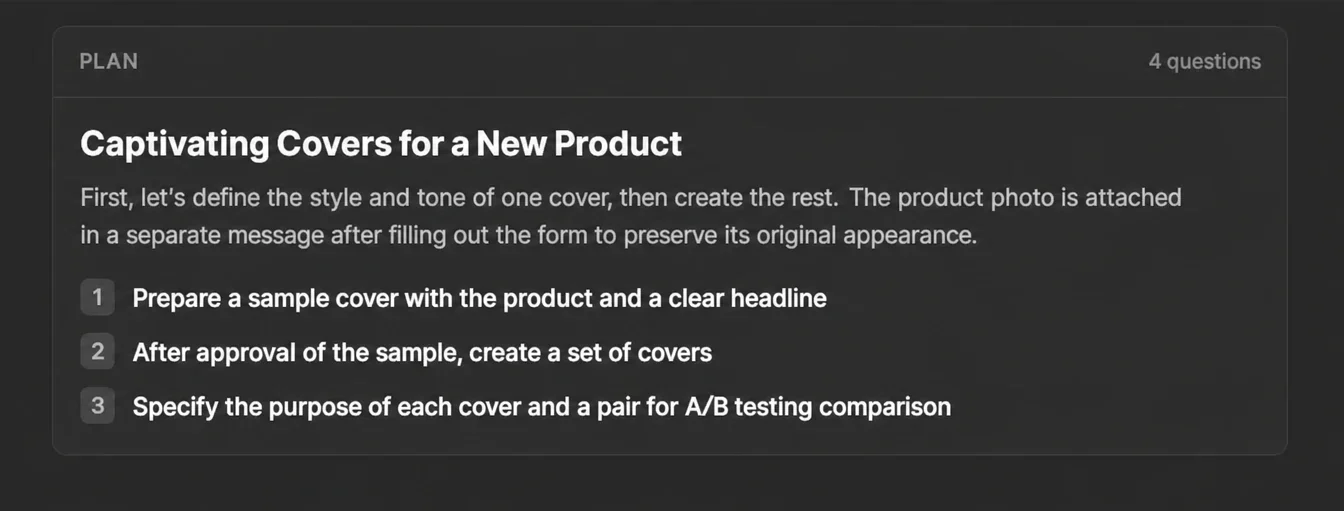
A Reels cover needs one idea in 3 to 6 words, set large in the center, plus a clear visual anchor: a face, an object or a result. Viewers decide in a second, so the cover works like a headline.
- A promise or a question: “Film Reels without an editor”, “Why aren’t your views growing?”.
- A number: “5 ideas in 1 minute”, “3 days before launch”.
- A face with emotion: surprise, a smile or eye contact reads even on a tiny preview.
- Contrast: light text on a dark background or the other way round, with no small fonts or long phrases.
Example: a “Edit a Reel in 10 minutes” cover with the creator’s face and a timer in hand explains the topic without sound or caption. The same topic with a shot of someone sitting at a laptop says nothing in the grid. Ready headline formulas you can move onto a cover are collected in our list of 300 hooks for your videos.
How to make a Reels cover with AI, step by step
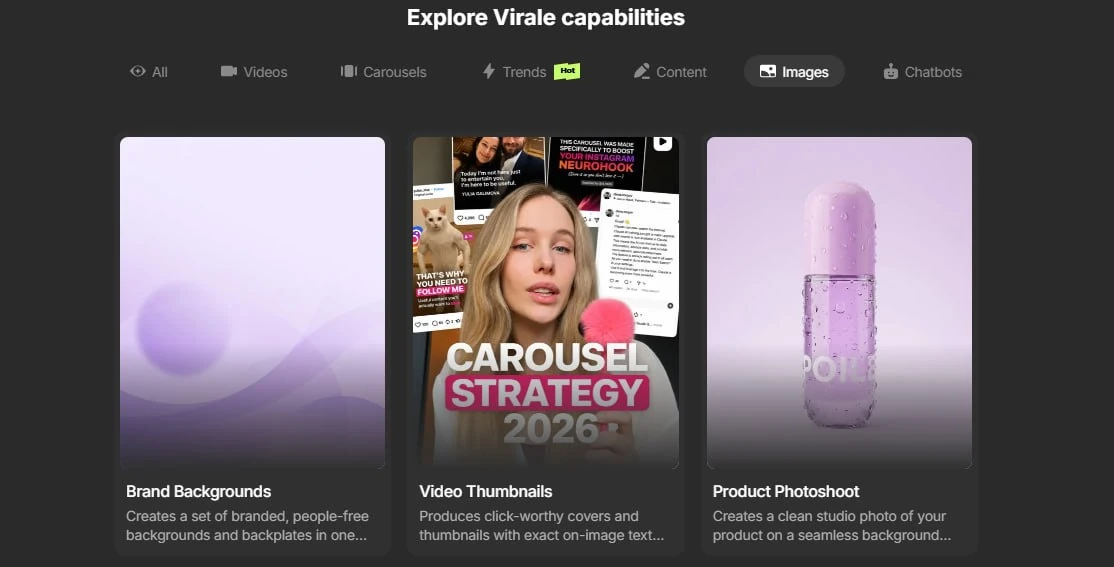
To make a Reels cover with AI, you take 5 steps in the chat: describe the topic, attach a photo, set the format and text, pick a model and compare versions. It all happens in the AI creator chat in Virale, which also has a ready-made thumbnails scenario that offers versions to compare.
- Describe the Reel topic. One sentence about the video and the audience, for example “a Reel about 3 plank mistakes for beginners”.
- Attach a photo. Your own shot or a frame from the video through “Add image”, up to 9 references in the chat.
- Set the format and text. Write “9:16 format, text in the center: ‘3 plank mistakes'” and put the exact wording in quotes.
- Pick a model. GPT Image 2 suits a cover with a headline, and Nano Banana Pro suits a portrait without text.
- Compare 3 versions. Ask for different fonts or backgrounds, pick the best one and download it.
You can’t edit a finished image with text, so every refinement is a new generation. If a generation fails with an error or a moderation refusal, the credits come back automatically.
Which model to pick and how much a cover costs
A cover with a headline is cheapest on GPT Image 2, from 4 credits per image at medium quality, while a portrait on Nano Banana Pro costs 17 credits. The Creator plan costs $45 a month and includes 2,500 credits, so one credit is about 1.8 cents. Prices were checked against the official pricing page.
| Model | Use it for | 1K | 2K | 4K |
|---|---|---|---|---|
| GPT Image 2, medium quality | a cover with a headline | 4 | 7 | 13 |
| GPT Image 2, high quality | complex typography | 15 | 25 | 51 |
| Nano Banana 2 | backgrounds and details | 9 | 13 | 20 |
| Nano Banana Pro | faces and portraits | 17 | 17 | 31 |
Example: 3 cover versions on GPT Image 2 at medium quality and 2K cost 21 credits, about $0.38. The Creator trial comes with 500 credits, which is enough for about 70 covers at that level.
How to keep one cover style across your grid
A consistent cover style comes from repeating the font, color and text position from Reel to Reel while only the topic and photo change. Your profile then looks like a storefront, and a new viewer understands what the account is about right away.
The simplest way to lock the style is a reference: attach a past cover that worked and write “make it in the same style, new text: …”. The model repeats the font, the color of the text box and the layout.
- Font and color: 1 font and 2 colors for every cover in the series.
- Series: a separate box color for each series, such as breakdowns, case studies and Q&A.
- Face: the same angle and framing, even when the photos differ.
Example: a creator runs 3 series and makes one master cover for each. Every new cover is then built from the master in a single request. The same principle works for the first slide in Instagram carousels made with AI.
A Reels cover with a keyword: getting leads from Reels
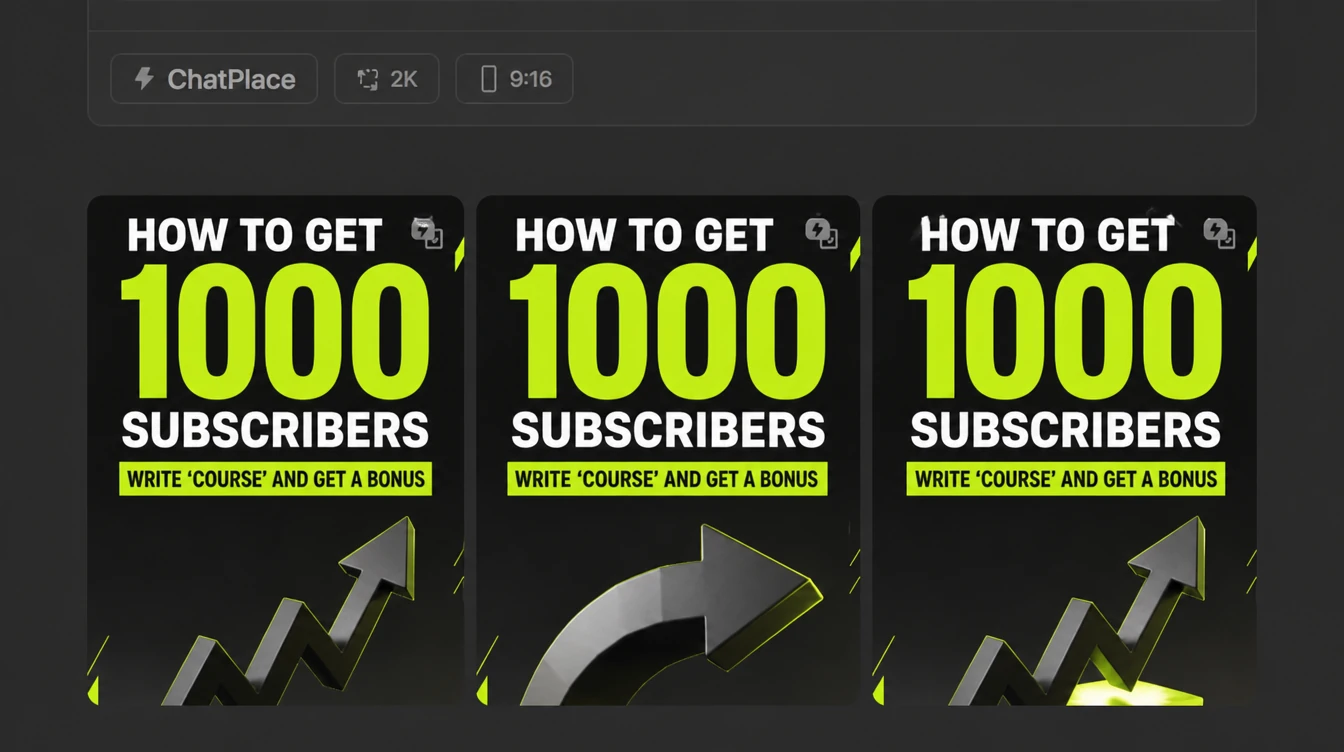
A cover with a keyword turns a view into a lead: viewers see “Comment PLAN” on the preview and get a DM reply automatically. Repeat the word in the video and in the caption, so people who don’t finish the Reel still notice it.
The keyword reply is set up in Instagram automations: a comment with the word triggers a DM with a link, a checklist or a booking. On the cover, write the word large and in capitals, and keep the call to action under 4 words.
Example: a skincare specialist posts a Reel called “3 winter skincare mistakes” with a “comment SKIN” box on the cover. Everyone who comments the word gets a checklist and a booking link in DMs, and the specialist doesn’t spend time on manual replies. The full comment-to-DM setup is in our guide on turning Instagram commenters into customers.
Key takeaways
- Make the Reels cover a separate 9:16 image, 1080 × 1920 to work with, while Instagram recommends 420 × 654.
- Pick the cover before posting, because you can’t change it after upload.
- Put one idea of 3 to 6 words in the center of the frame, plus a face or an object.
- Next step: make 3 versions on GPT Image 2 for 21 credits and pick the best one.
FAQ
What size is an Instagram Reels cover?
The recommended size for an Instagram Reels cover in the Help Center is 420 × 654 pixels, a 1:1.55 ratio. In practice it is easier to make the cover at 1080 × 1920 pixels in 9:16. Instagram scales a larger file down on its own, and the text and face stay sharp even on a big phone screen. A small 420 × 654 image works as a minimum, but it can look blurry when enlarged. For example, if you make the cover with AI, set 9:16 and 2K size; on GPT Image 2 at medium quality that is 7 credits, about $0.13 on the monthly Creator price. The Reel itself can be vertical 9:16 or horizontal 1.91:1, with a minimum video resolution of 720 pixels. Before posting, open the preview and check that the headline doesn’t fall onto the cropped edges in your profile grid and in the feed.
Can I change a Reel cover after posting?
No, according to the Instagram Help Center you can’t edit the cover photo after the Reel is uploaded. That is why the cover should be chosen and checked before you tap ‘Share’. If a cover has already gone live and looks wrong, you have two options. The first is to leave the Reel as it is and apply the lesson to the next posts. The second is to delete the Reel and post it again with a new cover, but you lose the views, likes and comments it has already collected. For example, an expert posts a Reel whose headline is cut off in the profile grid. If the Reel went up an hour ago and has barely any reach, reposting with a new cover usually makes sense. With thousands of views, leave it. To avoid this, keep the headline in the center of the 9:16 frame and always check the preview before posting.
What format should a Reels cover be?
A Reels cover should be vertical 9:16, the same as the Reel itself, so it fills the screen without bars and looks complete. A JPG or PNG file works. Even though the profile grid crops the preview at the edges, the source image has to be a full vertical frame, or the cover will look stretched or come with empty margins in the Reels feed. Put the important parts, the headline and the face, in the middle of the frame and leave the edges for the background. For example, a 9:16 cover with the text in the top third can lose its first word in the grid, while the same text in the center stays visible. In AI you set the format in the request with the phrase ‘9:16 format’, and the Virale models support it alongside 4:5, 1:1 and 16:9. Check the result on a phone, not only on a computer.
Why does my Reel cover get cropped on my profile?
A Reel cover gets cropped on your profile because the grid shows a smaller preview and cuts off part of the vertical 9:16 frame at the edges. The full cover is visible only in the Reels feed itself. This is normal Instagram behavior, not an upload error, so the fix is in the cover layout. The main rule: keep the headline, the face and the keyword in the middle of the frame, and leave only background near the top and bottom edges. For example, a ‘5 Story ideas’ caption at the bottom of the cover disappears in the grid, while the same caption in the center stays in place. On the last upload screen, look at the profile preview and shift the frame if needed. You can’t change the cover after upload, so this 10-second check protects the look of your whole grid. It helps to make one template with a safe zone and place text only inside it.
Can I make a Reels cover for free?
You can’t make a cover in Virale for free, because image generation spends credits and runs on the Creator and Premium plans. You can try it on the Creator trial, which comes with 500 credits. A cover with a headline on GPT Image 2 at medium quality costs 4 to 7 credits, so the trial covers dozens of versions. The trial requires a card and is only for accounts that have never paid for ChatPlace. There is a free route too: pick a frame from the Reel itself in Instagram, but such a frame is rarely sharp and almost never has a headline. For example, a creator on the trial makes 3 cover versions for 10 Reels, which is 30 generations of 7 credits, 210 credits in total, less than half of the trial balance. You can start the trial after you sign up for ChatPlace.
Can AI make a Reels cover from my own photo?
Yes, AI can make a cover from your own photo: attach the shot in the chat and ask for a 9:16 cover with your face, a background and a headline. Your photo works as a reference, and the model keeps your appearance. For covers with a face, Nano Banana Pro is the better fit: the interface labels it as the model for realistic faces and portraits, and it costs 17 credits per 1K or 2K image. If the cover needs large text, make a version on GPT Image 2 as well, because it draws lettering more accurately. For example, an expert attaches a selfie and writes ‘make a 9:16 cover, my face on the right, surprised expression, text on the left: ‘Don’t do this in Stories”. You can also attach a past cover as a style sample, up to 9 references in the AI creator chat.
Does a Reels cover need text?
A Reels cover needs text in most cases: it explains the topic without sound or caption and works as a headline in the profile grid. Without text, a cover relies only on emotion or a very obvious visual. The sweet spot is 3 to 6 words in a large font in the center of the frame, one idea and no extra detail. A promise, a question or a number works better than generic phrases like ‘useful video’. For example, ‘How to film without lights’ is clearer than a shot of a lamp with no caption, and ‘3 beginner mistakes’ is clearer than just the creator’s face. The exception is a Reel where the frame itself is the result, like a beautiful dish or finished nails: there the text can be smaller or dropped. For covers with lettering, use GPT Image 2 and put the exact phrase in quotes so the model keeps the words.
How many cover versions should I make?
Two or three cover versions per Reel are enough: you compare different headlines or backgrounds and pick the best one without overspending. The thumbnails scenario in the AI creator catalog offers versions to compare right away. Change only one thing between versions, such as the wording, the box color or the emotion in the photo, otherwise you can’t tell what made the difference. For example, for a Reel about Stories, make 3 covers with the headlines ‘5 Story ideas’, ‘Stories people watch to the end’ and ‘What to post in Stories today’. On GPT Image 2 at medium quality and 2K that is 21 credits, about $0.38. Pick the version that reads in a second on a small preview. Record which headlines you used in a table, and after a month compare which covers brought more views and keyword comments. Save the winning cover as a sample and attach it to your next requests.

Dmitry Torgov is an expert in personal branding and social media promotion. Co-founder of ChatPlace.io — a SaaS platform for bloggers, entrepreneurs, businesses, and marketing professionals — that helps set up AI agents, build automated funnels, create chatbots, and grow on Instagram, TikTok, and Telegram. Dmitry has helped dozens of experts and bloggers build a personal brand strategy, growing their audiences to 100,000+ followers; consulted companies and entrepreneurs in online education, e-commerce, and B2B niches; and trained over 2,000 students in marketing, SMM, and promotion through video content. “Personal branding is not about views, likes, or quick hype. Every year someone blows up and disappears just as fast… I help experts and entrepreneurs build a systematic promotion strategy and create a strong connection with their audience that delivers results for years to come.”