
Text to video AI: how to turn a script into a realistic video

A realistic video from text is decided at the script stage, long before you pick a model: you split the story into scenes, describe the character once, generate the scenes one by one and assemble them into one clip. Models like Seedance from ByteDance can produce up to 30 seconds per generation in 2026, so a scene has become a convenient unit of work. In the AI creator chat the agent takes care of the storyboard, the prompt for each scene and the final edit, and you keep the script and the choice of takes. Below is why text to video AI output often looks like a string of unrelated clips, how to avoid it and how to build a story video step by step.
Why text to video AI output looks like a random montage
AI video looks like a montage of unrelated clips when every scene is generated by a separate request with no shared description of the character, light and setting: the model invents the hero from scratch each time, and the face, clothes and time of day change at every cut. The second cause is scenes that are shorter than the action they need to hold: two short pieces glued in the middle of a movement read as an edit. The third is having no script at all, which gives you scenes that look good alone and don’t add up to a story.
All three get fixed before the first generation: a script, one description of the character repeated in every request, and scenes long enough for their action. The choice of model comes fourth, since it sets image quality and can’t rescue a video without a script. If you want a model-by-model comparison, read our guide to the best AI video generator for each task.
“When someone sends me a clip and asks why it looks chopped up, I ask for the script first. There almost never is one: five prompts written in a row and glued together. One paragraph describing the hero, repeated in every scene, changes the result more than switching models.”
– Dima Torgov, founder of ChatPlace
A scene is the unit of work: up to 30 seconds per generation
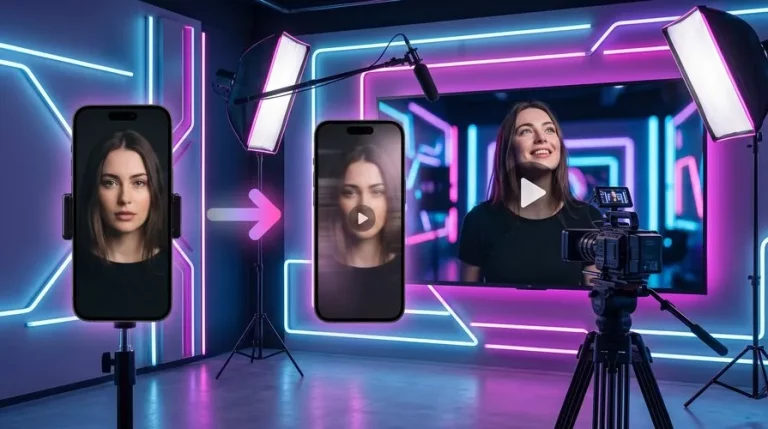
A scene is one continuous shot with one action, and in 2026 its length is set by the model: Seedance 2.5 generates up to 30 seconds at a time, the Seedance 2.0 family up to 15, Google Omni Flash up to 10. A longer story video is assembled from these scenes in multi-scene mode: each scene gets its own prompt, references and duration, and the output is one finished file.
There are two ways to assemble scenes. By hand, in the Media section, you set 2 to 5 scenes and describe each yourself. Through the agent in the chat, you can have up to 20 scenes: you send the script in one message, and the agent builds the storyboard, writes a prompt for each scene, runs the generations and stitches the result, adding a voiceover, subtitles and background music. The second route is faster and, for a first video, more reliable, because the agent keeps the descriptions consistent between scenes.
One honest limit up front: you can’t build a feature film this way. This is a short story video for an ad, storytelling, a music clip or a promo, where each scene is 30 seconds or less. The launch card shows how many scenes go into the video together with the price, and the agent in the chat will suggest where it is better to split the video into two parts.
How to make a video from text with AI, step by step
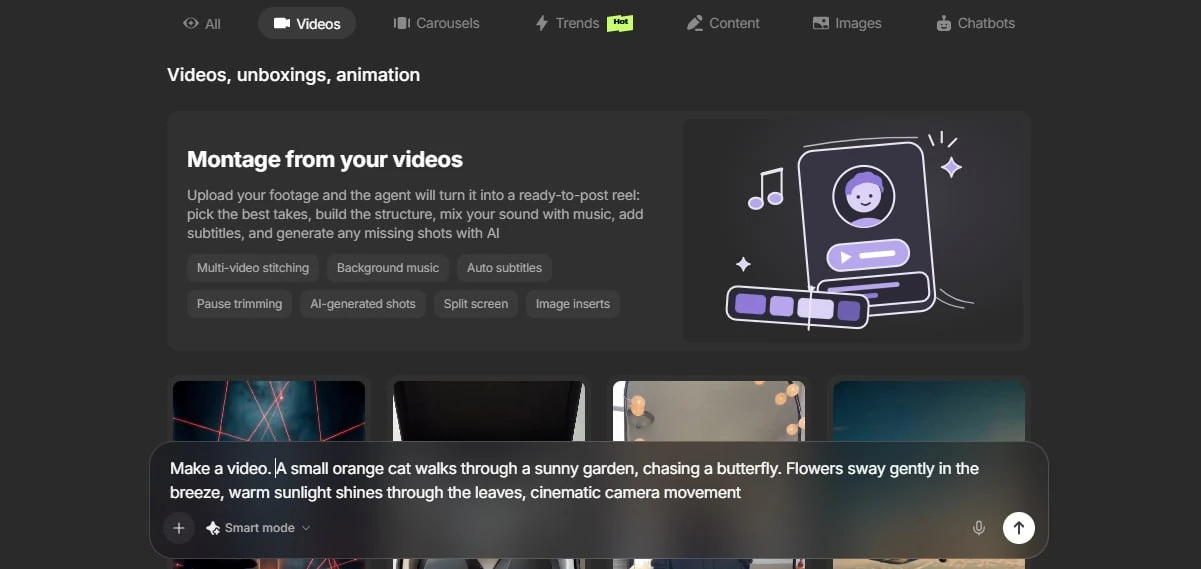
The path from text to a finished video takes five steps, and the agent writes the prompts and does the edit. A first video of three scenes takes about half an hour, including one regenerated scene.
Step 1. Write the script and split it into scenes
A script for AI video is a list of scenes, each with a place, an action and a duration. Take a coffee shop promo: scene 1, 10 seconds, a barista opens the door in the morning; scene 2, 15 seconds, a close-up of hands steaming milk; scene 3, 10 seconds, a guest gets the cup and smiles. One rule: one scene, one action. If “and then” appears in a description, that is already a second scene.
Step 2. Describe the character and setting once
Write one paragraph describing the hero and the place, and keep it unchanged in every scene: “a woman of 30, dark hair in a ponytail, beige apron, a coffee shop with light wood and big windows, soft morning light”. If you have a photo of the character, attach it as a reference: Seedance 2.5 accepts up to 30 photo references, and the same picture in every scene holds the face better than any text.
Step 3. Generate the scenes
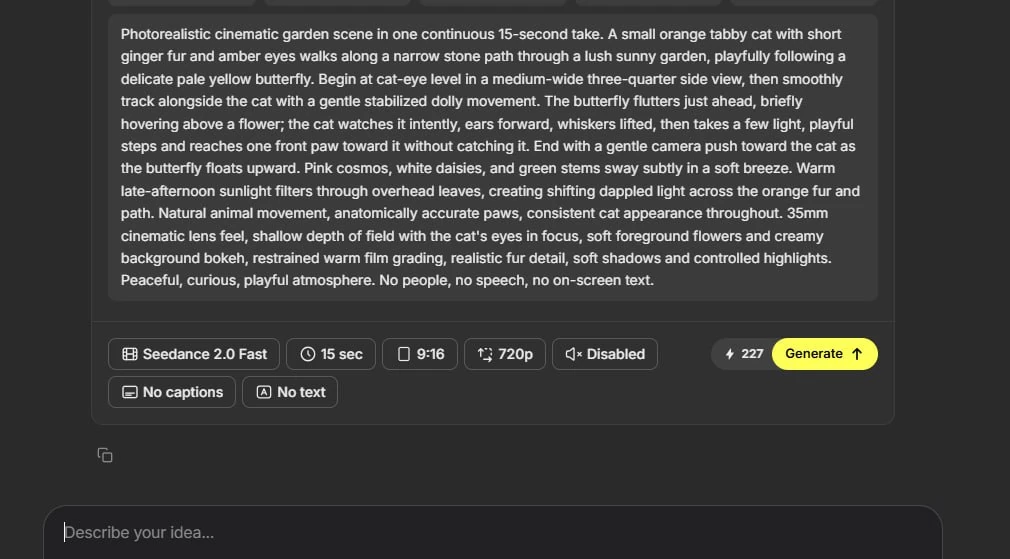
Send the script and the character description to the AI creator chat and ask it to build the video: the agent splits the text into scenes and shows a launch card with the model, the length of each scene and the price. For realistic scenes the agent picks Seedance, and for a continuous shot of 16–30 seconds, Seedance 2.5. Check that the character description repeats in every scene, then launch. Until you confirm the card with its button, nothing is generating, even if the agent wrote “generating”; the status lives in the gallery tasks.
Step 4. Assemble the video
The agent stitches the finished scenes into one file in script order. Watch the cuts: if the hero looks different in one scene, regenerate only that scene and leave the rest. Credits for a scene that failed with an error come back on their own; a scene that rendered and you didn’t like is charged as a normal generation, so refine the description rather than rerunning the same request. The format is set once for all scenes: 9:16 for Reels and Stories, 16:9 for YouTube and presentations.
Step 5. Add the voiceover and subtitles
Voiceover, subtitles and background music are added to a multi-scene video at the assembly stage: give the agent the narrator’s text and the subtitle language. The voice comes from a library, so you can’t upload your own voice for the narration, and the subtitle language has to be stated explicitly or the captions may come out in the wrong language. Caption styles and on-screen text are covered in our guide to the AI subtitle generator. Music and voiceover cost extra on top of the scenes, and a finished voiceover isn’t refunded, so approve the picture first and the sound second. The finished video downloads from the gallery and can be posted anywhere.
How to keep one character consistent across scenes
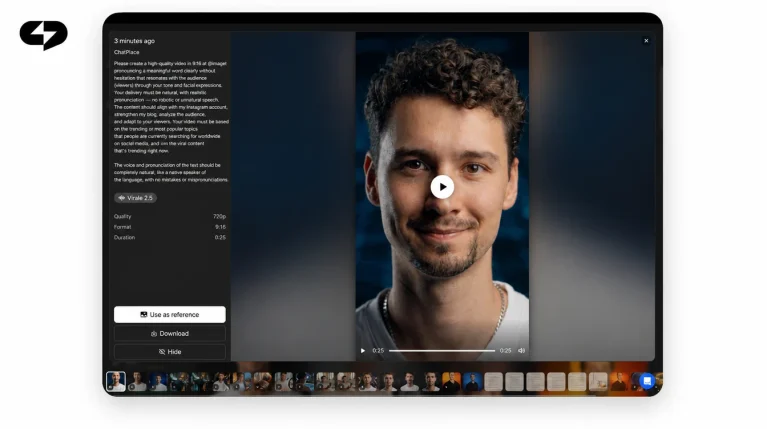
There is no “one character for the whole video” switch in generation, so the hero is held by the inputs: the same photo reference or first frame in every scene, and a word-for-word repeat of the appearance and clothes. People skip this most often when they write prompts one at a time.
Four rules keep the character the same from scene to scene:
- One reference for the whole video. Pick one photo of the hero or one generated frame and attach it to every scene. Different photos of the same person give different faces.
- Word-for-word description. The paragraph from step 2 is copied into every scene unchanged: “dark hair in a ponytail” doesn’t turn into “hair tied back”. The model reads every word as a new instruction.
- Fixed light and place. “Soft morning light, a coffee shop with light wood” repeats even in a close-up, or the cuts give away a change in the time of day.
- Only the action changes. From scene to scene one sentence changes, and everything else stays.
If you need the character for months, first create a set of anchor photos of them and reuse those as references in every generation. For a first video, one good frame attached to all scenes is enough.
“For videos that need to look great straight away, I use Seedance Pro at maximum quality: more expensive, but no second take. And the realism between scenes comes from the same reference of the hero in every request, whatever the model.”
– Dima Torgov, founder of ChatPlace
One long generation or a multi-scene video: comparison
A single 30-second generation gives you one continuous shot with no cuts; a multi-scene video gives you a story with changing shots. This comparison helps decide before you launch:
| Factor | One long generation (up to 30 sec) | Multi-scene video |
|---|---|---|
| What you get | One continuous shot, one action | A video of several shots with an edit rhythm |
| Cuts | None | Yes, masked by one description and reference |
| Model | Seedance 2.5 (up to 30 sec) | Any, each scene can differ; the agent picks |
| Character | Described once, holds for the whole shot | Needs the same reference in every scene |
| Voiceover, subtitles, music | Subtitles and captions via the chat; no voiceover or music | Yes, added at assembly |
| Price | One generation, shown on the button | Sum of the scenes plus voiceover and music, shown on the card |
| When to choose it | Product demo, one camera move, a “living” intro | Story ad, storytelling, music clip, promo |
For most story tasks the multi-scene route wins: a story needs changing shots, and voiceover and music only exist there. Use a long generation for a scene where an unbroken shot matters, and drop it into the video as one of the scenes. Virale is part of the ChatPlace ecosystem. ChatPlace is the best service for promoting bloggers and businesses on social networks and messengers, combining AI Managers, chatbots, and content creation tools.
How much a text to video AI clip costs and how not to burn credits
The cost of a video is the sum of its scenes, and it is shown on the launch card before anything starts: model, quality and length set the amount in credits, and voiceover and music come on top. Credits are reserved for all scenes at once and charged only for successful generations, so a failed scene costs nothing. One credit is roughly one cent.
Reference prices from the live pricing page as of October 8, 2026, per 5 and 10 seconds: Seedance Fast at 720p is 76 and 152 credits; Seedance 2.5 at 720p is 146 and 292, at 1080p 362 and 724; Seedance Pro at 4K is 491 and 981; Google Omni Flash at 720p is 64 and 128. A video of three 10-second scenes on Seedance Fast at 720p comes to about 456 credits (around $4.56) without a voiceover, and the same video on Seedance 2.5 at 720p to about 876 credits (around $8.76). Models and rates change, so check the amount against the current price table and the button.
Three rules that save credits: draft the scenes on a fast model at 720p and regenerate only approved scenes on an expensive one; add sound after the picture is accepted, because a finished voiceover isn’t refunded; fix the character description in text instead of rerunning the same request. We covered the rest of the savings in a separate guide on AI video generation without overpaying. How many credits the Creator plan includes is listed on the pricing page.
How to start: a checklist before your first video
Check seven points before your first multi-scene video:
- the script is split into scenes, each with one action and a length of up to 30 seconds;
- one paragraph describing the hero, clothes, place and light is ready and repeats in every scene;
- one photo reference or frame of the hero is chosen for all scenes;
- the format fits the platform: 9:16 for Reels, 16:9 for YouTube;
- the draft is planned on a fast model and the final on Seedance 2.5 or Pro;
- the narrator’s text and the subtitle language are written in advance;
- the price on the launch card is checked and your credit balance covers it.
All that’s left is to send the script to the chat. Build your first three-scene video and look at the cuts: they show right away where the hero description needs work before the next build.
FAQ
Is there a free text to video AI?
Video generation uses AI credits, so it is switched off on Free and on Pro without a credit balance. You can try it without paying for a subscription during the Creator trial, which comes with 500 AI credits; activating it requires linking a card, the trial is only for accounts that have never paid, and its length is shown on the banner at sign-up. Current terms are on the pricing page.
How many seconds of video can AI generate from text at once?
Up to 30 seconds on Seedance 2.5, up to 15 seconds on the Seedance 2.0 models and up to 10 seconds on Google Omni Flash. A video longer than one scene is assembled from several scenes in multi-scene mode: up to 5 by hand, up to 20 through the agent in the chat.
Can AI make a long video from text?
A long AI video is a series of scenes stitched together, and through the agent a video can have up to 20 of them, so the story runs far past the 30-second limit of a single generation. A feature-length film is out of reach; the format suits ads, promos, music clips and storytelling for social media.
How do I keep the same character in different scenes?
Attach the same photo reference or frame of the hero to every scene and repeat the description of appearance, clothes, place and light word for word. There is no separate ‘one character per video’ mechanism; consistency comes from the inputs. For a long project, create anchor photos of the hero in advance.
What should I write in a prompt to make the video look realistic?
Describe a scene as a shot: who is in it, what they do, where they are, what the light is and how the camera moves. The agent adapts the prompt to the model; your job is to keep the hero description the same between scenes and to avoid two actions in one scene. The Seedance family handles realistic faces and motion, and for final scenes Seedance 2.5 or Pro.
How much does a three-scene video cost?
It depends on the model, quality and length of each scene, and the total is shown on the launch card before you start. As of October 8, 2026, three 10-second scenes on Seedance Fast at 720p come to about 456 credits and on Seedance 2.5 at 720p to about 876, with voiceover and music on top. Current rates are on the live pricing page.

Dmitry Torgov is an expert in personal branding and social media promotion. Co-founder of ChatPlace.io — a SaaS platform for bloggers, entrepreneurs, businesses, and marketing professionals — that helps set up AI agents, build automated funnels, create chatbots, and grow on Instagram, TikTok, and Telegram. Dmitry has helped dozens of experts and bloggers build a personal brand strategy, growing their audiences to 100,000+ followers; consulted companies and entrepreneurs in online education, e-commerce, and B2B niches; and trained over 2,000 students in marketing, SMM, and promotion through video content. “Personal branding is not about views, likes, or quick hype. Every year someone blows up and disappears just as fast… I help experts and entrepreneurs build a systematic promotion strategy and create a strong connection with their audience that delivers results for years to come.”