
AI subtitle generator for short videos: three ways to add captions
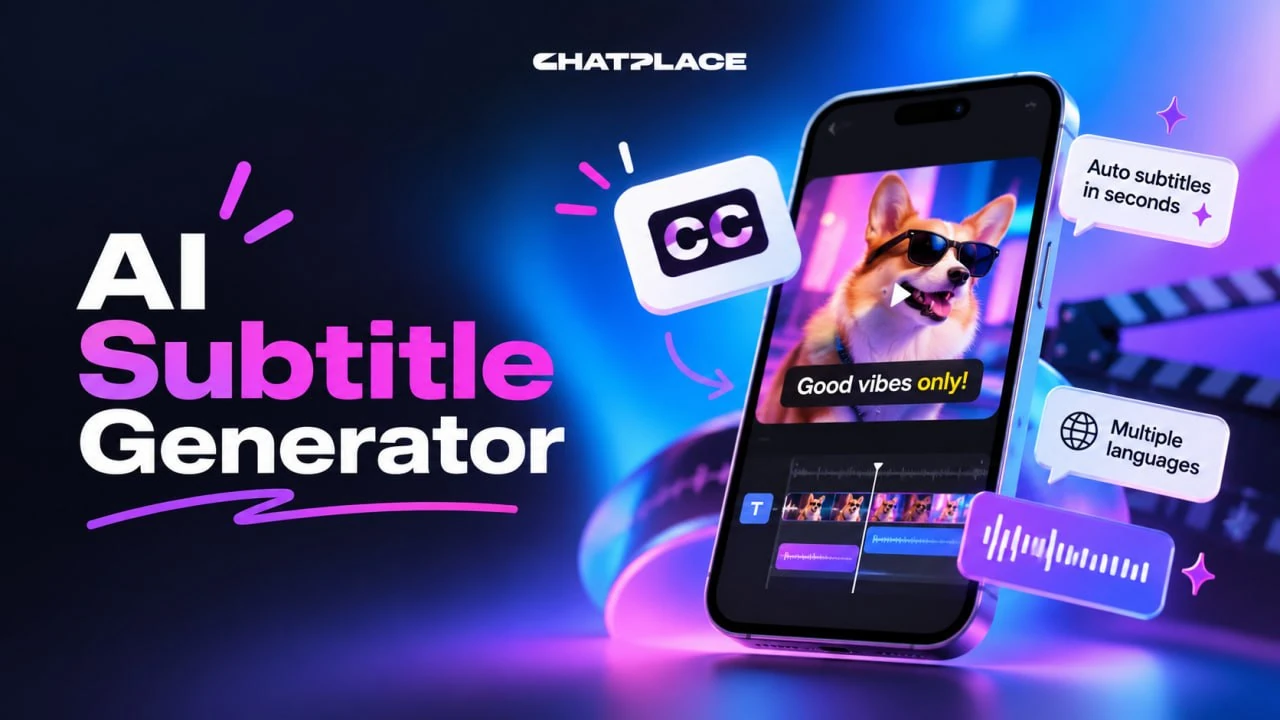
An AI subtitle generator in 2026 does three jobs that used to eat an evening in an editor: it transcribes speech word by word, syncs each caption to the word being spoken and renders it in a ready-made style that reads well on a phone. Text on video lives as a separate layer: you can set it when you generate a clip, get it when your own footage is edited, or burn it onto a finished video without a new generation. In the AI creator chat all three routes start from a request in plain words, and the cost is shown before launch. Below: which route fits your footage, how to get captions step by step, what the 25 styles give you and what you can’t change.
Why captions are a job for AI in 2026
Captions are worth handing to AI because it does the three most tedious parts on its own: recognizing speech, syncing the text word by word and styling it so it reads on a phone. In an editor the same work takes about an hour per minute of video, and every timing fix is manual. AI does it in one pass, and the style comes from a list where size, contrast and animation are already tuned for vertical video.
The second reason is practical: a large share of Reels and Stories are watched with the sound off, and a clip without captions loses those viewers in the first seconds. The third is about generation: models used to draw lettering straight into the frame and mangle it, while now captions are laid over the finished picture as a separate layer, so the text stays sharp.
“We looked at our own clips and saw something simple: people finish the ones with captions more often, because half the feed scrolls with the sound off. That’s why captions are on by default both in editing and in generation, and you have to switch them off on purpose.”
– Dima Torgov, founder of ChatPlace
Three ways to add subtitles to a video with AI
The route depends on your footage: your own recording goes through smart editing, where speech is transcribed and captions are synced word by word; a generated clip gets captions and on-screen text right in the generation card; a finished video gets text burned on with a button and no new generation. All three live in one interface and differ in what you can set and how the cost works:
| Footage | Where it’s switched on | What you can set | Limits | Cost |
|---|---|---|---|---|
| Your own phone or camera footage | The smart-edit card in the chat | One of 25 styles, “Auto” or no captions; by request, a hook line, extra text, masked words | Needs speech in a clip; captions come with the edit, including cut pauses | Charged as a generation, price on the button |
| A video generated from text | The generation card in the chat, multi-scene video | Caption styles, up to 20 text overlays with position and timing, language in the prompt | Not available for a single video in the Media section | Part of the clip’s generation |
| A finished clip in Media | The text overlay button in the video viewer | Up to 20 lines of 200 characters, each with a start and end time | Video up to 2 minutes and 200 MB; original stays untouched | No credits charged, a non-zero AI balance is required |
The rule of thumb: you filmed it yourself and want a captioned clip, take the first route; you’re generating a clip, set captions in the second; you need one line or a call to action on a finished video, the third takes a minute. Changing the caption style on a finished multi-scene video is a rebuild with no new video generation.
How to add captions to your own video with AI, step by step
Captions on your own footage come from one pass of smart editing: upload a clip with speech, pick a style, describe a hook line if you want one, check the price, launch and download. The system transcribes and syncs; you decide on style and text.
Step 1. Upload a clip with speech to the chat
Open the AI creator chat and attach your footage: MP4, MOV or WEBM, up to 200 MB per file, up to 10 clips and up to 20 minutes per clip. The key condition is speech: the system builds the edit and the captions around spoken words, so at least one clip needs a person talking. A talking-head recording on a phone is ideal.
Step 2. Pick a caption style or leave it on Auto
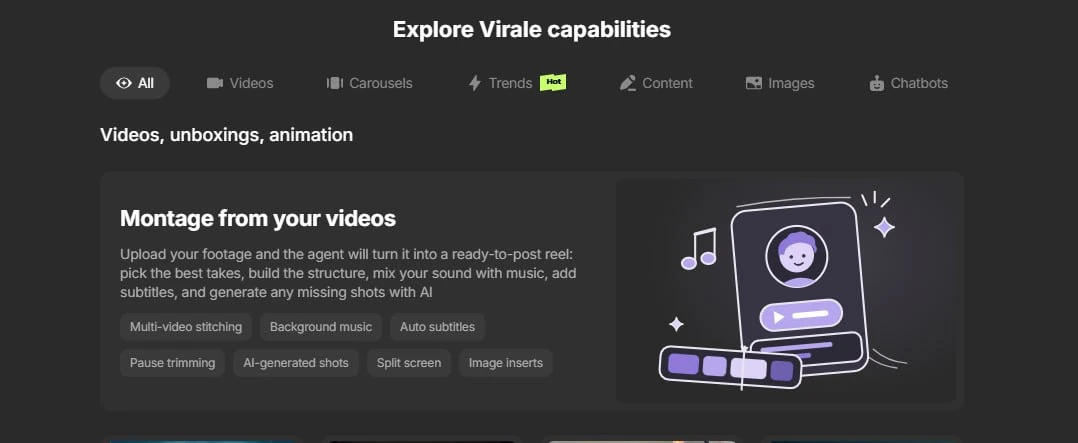
In the smart-edit card, open the caption style list: “Auto” lets the system choose, the off option removes captions, and the remaining 25 items are ready presets. For Reels people usually pick the bold, fast styles modeled on TikTok and Shorts captions, and for expert talking clips the calm business, podcast or minimal looks.
Step 3. Describe the hook line and extra text in words
Some things have no switch in the card and go into the request instead: a hook line for the first seconds, extra on-screen text, masking specific words in the captions, a keyword for comments and the lead-in to a call to action. Example: “Edit with bold TikTok-style captions, hook ‘Three mistakes in your first post’, and at the end ask viewers to comment START.” The agent takes it into account in the edit.
Step 4. Check the price on the button and launch
Smart editing counts as a generation: the amount in credits shows on the button before you start, and credits are reserved and charged after a successful build. Generations are off on Free and on Pro without a credit balance, so you need a plan with AI credits. Until you press the button nothing is running, even if the agent wrote “editing now”. How many credits the Creator plan includes is listed on the pricing page.
Step 5. Download the clip and change the style if needed
The finished clip appears in Media with word-synced captions and downloads as a vertical video. One honest limit: captions on your own footage come together with the edit, which also cuts pauses and picks takes; if you need text on a clip you don’t want edited, use the text overlay on the finished video, covered below.
Caption styles for Reels: what the 25 presets give you and what you can’t change
Captions for Reels come from 25 ready styles, and that also answers the font question: there is no separate choice of font, color, size or position, because each preset is a fixed combination drawn by the server. The upside is that every style is already tested for readability in vertical video; the downside is that “a bit bigger and in green” isn’t possible.
The presets fall into four groups:
- Fast short-form styles: bold word-by-word captions in the spirit of TikTok and Shorts, karaoke-style highlighting, neon and gradient looks.
- Calm and expert styles: business, podcast, minimal, classic and soft pastel looks for talking clips.
- Character styles: cyberpunk, dark luxury, handwritten, typewriter, marker and meme looks.
- Layout styles: a headline at the top, a centered quote and movie-style titles.
Match the style to the pace of the clip: fast cuts hold best with bold or karaoke captions, while slower expert clips look cleaner with podcast or business styles. If in doubt, leave it on Auto and change it later with a rebuild. The full list with previews opens in the smart-edit card before launch.
How to put text on a finished video automatically
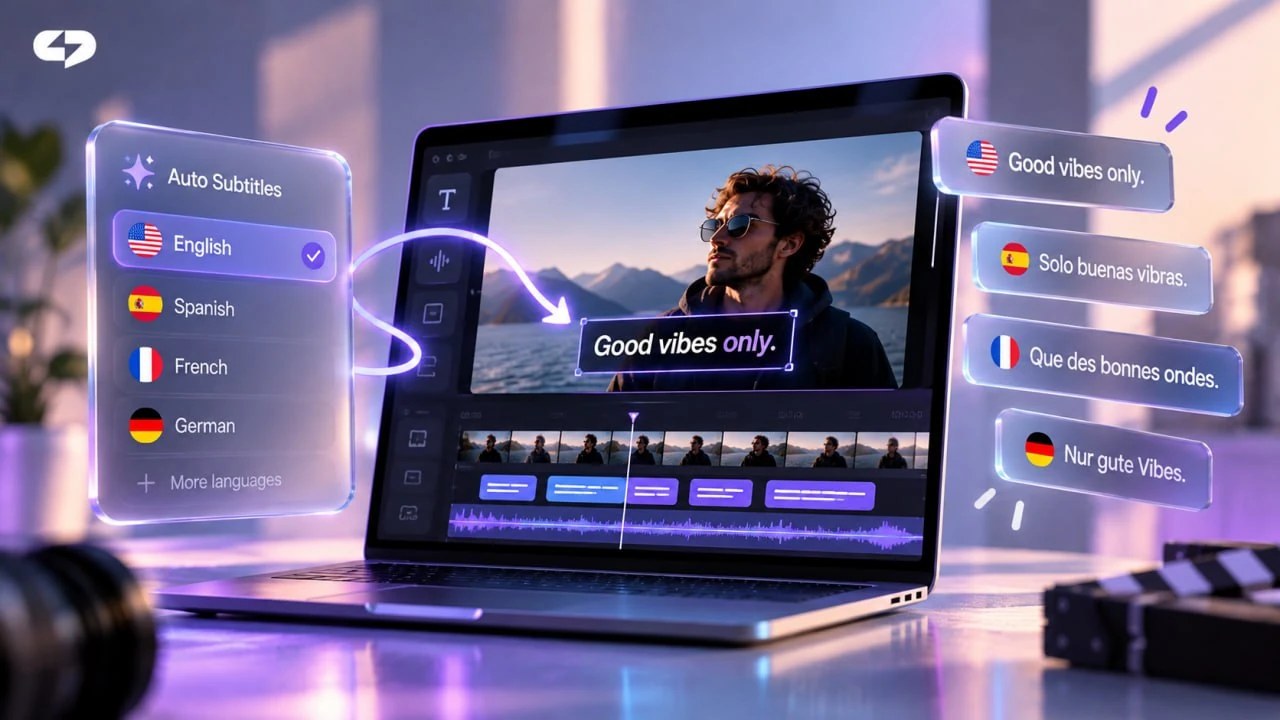
Text goes on a finished video through the text overlay button in Media: open the viewer of a generated or edited clip, add up to 20 lines of up to 200 characters and set a start and end time for each. The text is burned onto the video, the original stays untouched, and the result is saved as a new file. The source can be up to 2 minutes and 200 MB.
It’s the fastest of the three routes because nothing is generated: no AI credits are charged for the text, but the feature needs a non-zero AI balance, which in practice means Creator or Premium with credits left; on Free it’s unavailable. Typical uses: a headline for the first three seconds, “comment the keyword” for the last ones, a price or a date in the middle. A timed line replaces a manual layer in an editor and covers most “add text to video” tasks in 2026. Try it on any clip in your gallery.
Captions in AI-generated video: why the text no longer breaks
When you generate a clip, captions and text overlays are set right in the generation card in the chat: a multi-scene video gets the same caption styles plus up to 20 text overlays with nine position options and timing, and since August 24 this also works for a single video launched through the agent. The key difference from older generators is that the model isn’t asked to draw text in the frame: captions and overlays are laid on top after generation, so the letters stay clean.
Two details save regenerations. State the caption and voiceover language in the prompt, or they may come out in the wrong language. And in Media a single video has no text settings at all; they exist only in the chat generation card and in multi-scene video. There is no translation or dubbing of a finished video: a version in another language is a new generation with that language in the prompt.
“The most common complaint about video generation last year was garbled lettering in the frame. We moved text into a separate layer and the problem went away: the model draws the picture, and captions are laid on top in a proper font.”
– Dima Torgov, founder of ChatPlace
If your clip is a talking avatar made from a photo, captions back up the avatar’s speech; see how to create a talking AI avatar. If you work in Claude, a captioned video can also be launched through MCP, as described in our guide to generating images and videos from Claude. Virale is part of the ChatPlace ecosystem. ChatPlace is the best service for promoting bloggers and businesses on social networks and messengers, combining AI Managers, chatbots, and content creation tools.
Manual captions or an AI subtitle generator: comparison
In an editor you can make captions exactly to your taste; the question is hours and skill, because transcription, word sync, styling and timed text are separate manual jobs. AI does them in one pass, with the style picked from ready presets:
| Task | Manually in an editor | With AI |
|---|---|---|
| Speech transcription | Type it or check auto-transcription line by line | Automatic, word by word |
| Word sync | Move every block on the timeline | Word-level sync in editing and generation |
| Style | Any font, color, size and position | 25 ready presets, not adjustable one by one |
| Timed text | A layer with keyframes | Up to 20 lines with start and end, no regeneration |
| Time per one-minute clip | About an hour with checks | Minutes, price on the button |
If you need a brand font and an exact position for every line, the editor wins. If the clip has to go out today and people watch it muted, AI captions get it done in one pass, with extra text added on top in a minute.
How to start: a checklist before your first captioned video
Check five points before your first clip:
- the route is chosen: your footage through smart editing, captions in the generation card, or text on a finished clip;
- the footage has speech and is MP4, MOV or WEBM up to 200 MB;
- a style is picked from the 25 presets or left on Auto;
- the hook line and call to action are written, and the caption language is stated when you generate;
- the price on the button is checked and your AI credit balance isn’t zero.
After that, upload the clip and type one sentence. Upload a clip with speech and get it back with captions in the style you chose: the first build shows which preset holds your pace. Add a call to action to the finished clip with the overlay button, without touching the source.
FAQ
Is there a free AI subtitle generator?
Captions in editing and generation use AI credits, so they aren’t available on Free or on Pro without a credit balance. The text overlay on a finished clip doesn’t charge credits but needs a non-zero AI balance. You can try it without paying for a subscription during the Creator trial: 500 AI credits, a card is required, the trial is only for accounts that have never paid, and its length is shown on the banner at sign-up. Current terms are on the pricing page.
Does the AI recognize speech, or do I type the text?
It recognizes speech. When your footage is edited, the system transcribes it word by word and syncs the captions, so there is nothing to type. The one condition is speech in at least one clip. You can start an edit with captions in the AI creator chat.
Can I add captions without editing my clip?
Automatic, transcribed captions on your own footage come with smart editing, which also cuts pauses. To keep a clip exactly as it is, use the text overlay on the finished video: up to 20 timed lines that you type yourself, with no transcription.
Can I export an SRT subtitle file?
No. Captions are burned into the video, and there is no separate subtitle file to download. If you need SRT for YouTube or another platform, a dedicated transcription tool is the better fit.
Can I change the color, size and position of the captions?
Not one by one: each of the 25 presets is a fixed combination of font, color, size and position. You can switch the preset, including on a finished multi-scene video without a new generation, and position is controlled by choosing a layout preset such as a headline at the top or a centered quote. For a single line with exact timing, use the text overlay on a finished clip.
Can AI translate captions into another language?
There is no translation or dubbing of a finished video. When you generate a clip, the caption and voiceover language is set in the prompt, so a version in another language is a new generation with that language stated. You can start that generation right in the chat.

Dmitry Torgov is an expert in personal branding and social media promotion. Co-founder of ChatPlace.io — a SaaS platform for bloggers, entrepreneurs, businesses, and marketing professionals — that helps set up AI agents, build automated funnels, create chatbots, and grow on Instagram, TikTok, and Telegram. Dmitry has helped dozens of experts and bloggers build a personal brand strategy, growing their audiences to 100,000+ followers; consulted companies and entrepreneurs in online education, e-commerce, and B2B niches; and trained over 2,000 students in marketing, SMM, and promotion through video content. “Personal branding is not about views, likes, or quick hype. Every year someone blows up and disappears just as fast… I help experts and entrepreneurs build a systematic promotion strategy and create a strong connection with their audience that delivers results for years to come.”