
How to send files and PDFs in Instagram DM: What works in 2026
Knowing how to send PDF on Instagram comes down to one fact: the Instagram app has no file option in Direct, but business accounts can send PDFs up to 25 MB through Meta’s messaging API, usually from an automation tool. For a one-off chat, share a link to the file. For lead magnets and price lists sent to many people, set up an automation. Below: both methods, file limits and fixes.
Can you send a PDF on Instagram DM?
You can’t attach a PDF from the Instagram app itself: at the time of writing (November 2026), the DM attachment menu offers photos, videos, voice messages and shared posts, with no document picker. A business account can still deliver a real PDF file through the messaging API.
That split explains the confusing answers online. People who try it on their phone say it’s impossible. Creators who get a free guide in their DMs after commenting see a real PDF. Both are right.
- Personal or one-off chat: send a link to the file, or send the pages as images.
- Business account, many requests: use a tool connected to Meta’s API to send the PDF automatically.
- Receiving files: if a client needs to send you a document, ask for a link or a photo of the page.
Example: a fitness coach can’t drag a meal plan PDF into a chat from the app, but the same PDF goes out automatically to everyone who comments “PLAN” under a Reel.
Which file types Instagram DMs accept
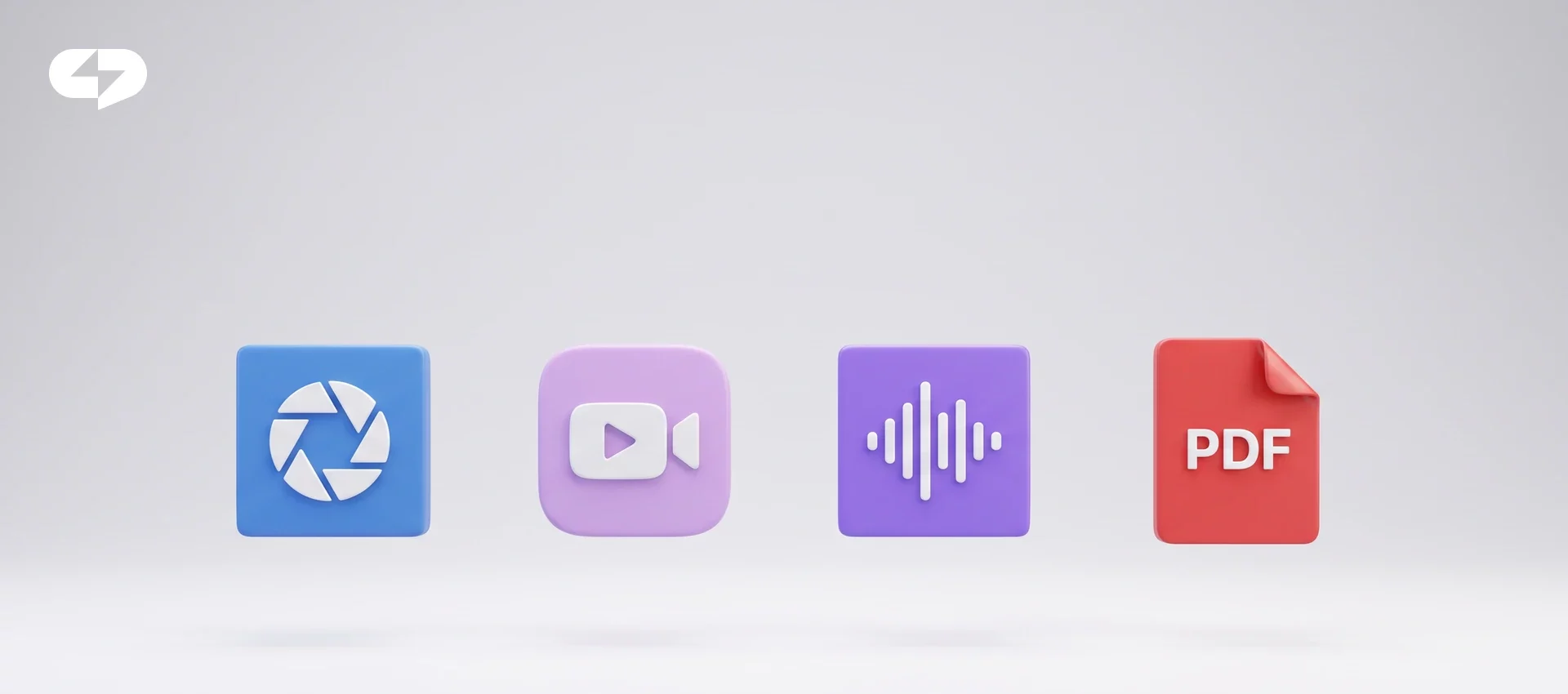
Instagram DMs accept images, videos, audio and PDF files when a business sends them through the API. Meta’s documentation on sending messages lists the formats and size caps.
| File type | Formats | Meta API limit | Limit in our builder |
|---|---|---|---|
| Image | png, jpeg (gif in builder) | 8 MB | 5 MB |
| Video | mp4, ogg, avi, mov, webm | 25 MB | 20 MB |
| Audio | aac, m4a, wav, mp4 | 25 MB | 20 MB |
| File | PDF only | 25 MB | 20 MB |
Word files, spreadsheets, ZIP archives and slide decks aren’t accepted as attachments. Export them to PDF first or share a link. Example: a real estate agent turns a 40 MB brochure into a 12 MB PDF by compressing the photos, and it now fits both limits. Keep files under the smaller limit if you use an automation tool.
How to send a PDF from the Instagram app: 3 workarounds
When you’re chatting from your phone, use one of 3 workarounds. None of them sends the PDF as a file, but each gets the content to the other person in under a minute.
- Share a link. Upload the PDF to Google Drive, Dropbox or your website, set access to “anyone with the link” and paste the link into the chat.
- Send pages as images. Screenshot or export the key pages and send them as photos, up to 10 at a time.
- Post it as a carousel. Turn the PDF into a carousel post and share the post in DMs. It also gives you content for your feed.
Links are the most common choice, but be careful with links in first messages to people who haven’t written to you before: Instagram may treat them as spam. More on what triggers restrictions is in our guide to Instagram limits. Example: a designer sends a portfolio link to a client who asked for it, which is safe because the client started the chat.
How to send a PDF automatically after a comment
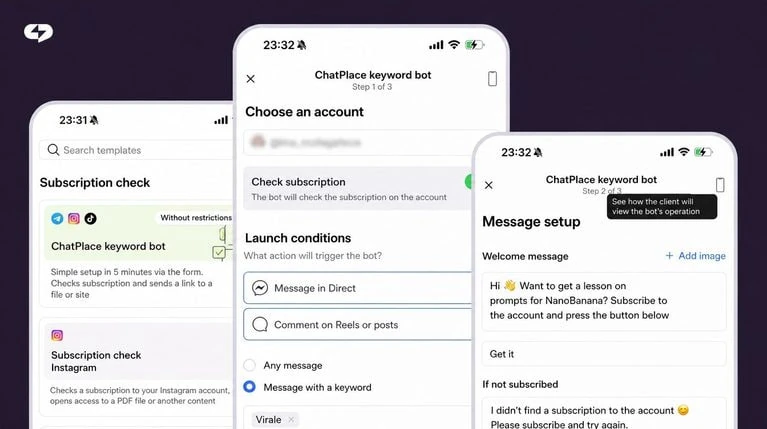
To send a PDF automatically, connect your account to an automation tool and build a flow that starts from a comment keyword. The first message must be a card with a button, and the PDF goes out after the tap.
- Pick a keyword and add it to your Reel caption: “Comment GUIDE and I’ll send it”.
- Set the trigger to a comment with that keyword on one post or all posts.
- Add a card with a short text and a quick reply button such as “Get the guide”.
- Attach the PDF to the message that follows the button tap.
- Test it from a second account before you publish the post.
The button matters because of Instagram’s rule: after a comment, a business can send only one private reply until the person responds or taps a button. A tap opens the 24-hour messaging window, and then the PDF and any follow-ups go through. You can build this flow in our Instagram automations without code. Example: a nutritionist’s Reel collects 300 “MENU” comments, and every person who taps the button gets the PDF within seconds.
Why your PDF didn’t arrive
A PDF usually doesn’t arrive for one of 5 reasons: a closed messaging window, a wrong file type, a file that’s too large, text and file combined in one plain message, or a flow that skipped the button.
- Closed window. You can message a person for 24 hours after their last action. After that, nothing is delivered until they write again.
- Not a PDF. DOCX, XLSX and ZIP files are rejected. Export to PDF.
- Too large. Compress images inside the PDF or split it into 2 files.
- Text plus file. Instagram doesn’t take text and media in one plain message. Send them separately or use a card.
- No button. A second message after a comment won’t be delivered until the person taps.
Example: a course creator’s PDF stopped arriving because a teammate replaced the card with a plain text message; putting the button back fixed it. Our Instagram welcome message guide shows first messages that work with this rule.
Which PDFs work best as DM lead magnets
PDFs that solve one small problem in under 5 minutes of reading work best as lead magnets in DMs. Long ebooks get downloaded and forgotten; a checklist gets used the same day.
- Checklists: “10-point pre-launch checklist”, “packing list for a ski trip”.
- Price lists and menus: easier to read than a long DM, and you update one file.
- Mini guides: 3 to 5 pages with one method and one example.
- Templates: a content calendar, a budget sheet exported to PDF, a script outline.
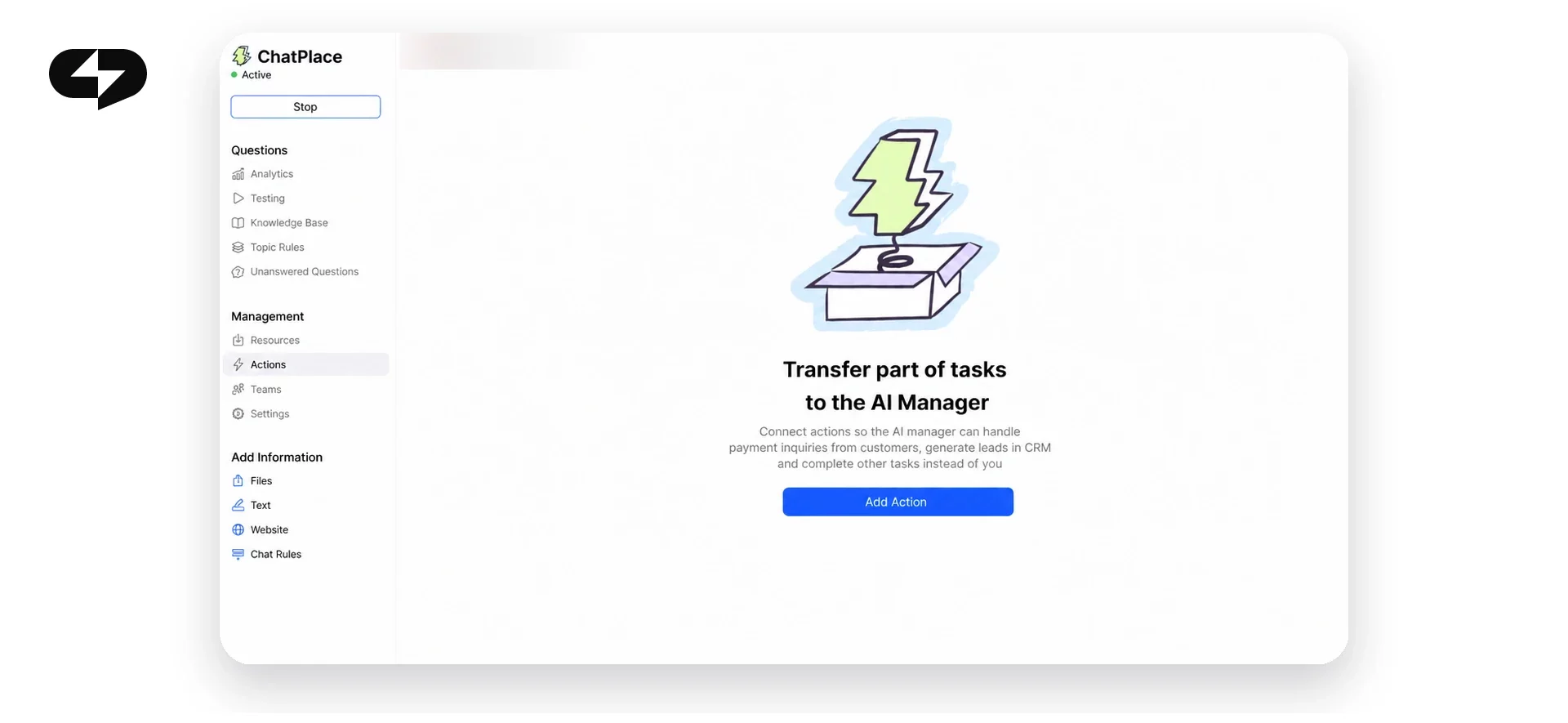
After the PDF, ask one question to keep the conversation going. If people reply with questions in their own words, an AI Manager can answer them from your knowledge base while the window is open. Plans and limits are on the pricing page. Example: a bakery sends its holiday price list as a PDF, then asks “Which cake are you thinking about?”, and the AI Manager takes the order details. Try 14 days of Pro free with the button below.
Summary
- The Instagram app has no file option in DMs; share a link or images for one-off chats.
- Business accounts can send PDFs up to 25 MB through Meta’s API (20 MB in our builder).
- For automatic delivery, start with a card and a button, then send the PDF after the tap.
- Next step: pick one checklist you already have, export it to PDF and build a keyword flow for your next Reel.
FAQ
Can you send a PDF on Instagram from your phone?
You can’t send a PDF as a file from the Instagram app on your phone: the DM attachment menu doesn’t include documents, so the practical option is a link. Upload the file to Google Drive, Dropbox, iCloud or your website, set it to open for anyone with the link, and paste the link into the chat. If the file is short, you can also send the pages as images, which works well for 1 or 2 page price lists. Example: a photographer sends a client the session guide as a Google Drive link and a screenshot of the first page, so the client sees the key details without opening anything. If you send the same PDF to many people every week, switch to an automation: it delivers the real file inside the DM and saves you from copying links by hand. Our auto-reply setup guide explains the first steps.
What is the maximum PDF size for Instagram DMs?
Meta’s messaging API accepts PDF files up to 25 MB in Instagram DMs, and our builder accepts PDFs up to 20 MB. Other tools may set their own limits below Meta’s, so check the one you use. Most lead magnets are far smaller: a 10-page guide with a few images is usually 1 to 5 MB. If your file is bigger, compress the images inside it before exporting, or split it into 2 parts and send them one after another. Example: an interior designer’s lookbook was 38 MB because of full-resolution photos; after exporting with compressed images it dropped to 9 MB and looked the same on a phone screen. If the file still doesn’t arrive after compressing, check the other common causes, like a closed 24-hour window or a missing button in the first message.
Can you send Word or Excel files in Instagram DM?
You can’t send Word, Excel, PowerPoint or ZIP files as attachments in Instagram DMs: the only document format Meta accepts is PDF. To share one of these files, export it to PDF first or share a link to the original. Export is built into most editors: in Word, Google Docs, Excel and Google Sheets use ‘Download’ or ‘Save as’ and choose PDF. A link is the better choice when the other person needs to edit the file, for example a shared spreadsheet or a contract draft. Example: a bookkeeper sends clients a tax checklist as a PDF in DMs, but shares the editable budget spreadsheet as a Google Sheets link with comment access. Send links only to people who asked or tapped a button, since unsolicited links can look like spam. For recurring requests, an automation can send the PDF version automatically, and you share the editable link only when a client actually needs it.
Why is my PDF not sending on Instagram?
A PDF usually doesn’t send because the 24-hour messaging window is closed, the file isn’t a PDF, it’s over the size limit, or your flow sends a second message after a comment without a button tap. First, the window: a business can message a person for 24 hours after their last action, so an old conversation needs a new message from them. Second, the format: only PDF is accepted, not DOCX or ZIP. Third, the size: up to 25 MB through Meta’s API and 20 MB in our builder. Fourth, the comment rule: after a comment, only one private reply goes out until the person taps a button or replies. Example: a coach’s flow sent ‘Here’s your guide’ and then the PDF as 2 messages after a comment, and only the first one arrived. Replacing the first message with a card and a ‘Get it’ button fixed delivery.
How do I send a free PDF guide to everyone who comments?
To send a free PDF to everyone who comments, use a comment-keyword automation: the person comments a word like GUIDE, gets a card with a button in DMs, taps it and receives the PDF. Setup takes about 10 minutes in a tool connected to Instagram. Add the keyword to your caption and choose whether the trigger works on one post or all posts. Write a short first message, for example ‘Your guide is ready, tap below’, and add a quick reply button. Attach the PDF to the next message and add a follow-up question an hour later. Example: a language teacher posts a Reel about 5 common mistakes, asks people to comment ‘LIST’, and sends a PDF with 30 phrases; the follow-up offers a trial lesson. You can build and test this flow after you sign up for ChatPlace. Check the results after a week and rewrite the button text if many people stop before tapping.
Can I send a PDF to new followers automatically?
You can’t send a PDF to new followers automatically, because Instagram doesn’t give automation tools a ‘new follower’ event. Every automated DM has to start with an action from the person: a comment, a DM, a story reply or a button tap. The workaround is to invite new followers to act. Pin a post or Reel that says ‘Comment START for the free guide’, add the same call to your bio, and mention it in your stories every week. People who follow and then comment get the PDF through your keyword flow. Example: a fitness creator pins a Reel with ‘Comment PLAN for my 4-week program’, and about a third of new followers comment within their first day. Our article on Instagram welcome messages lists 15 first messages that fit these triggers. Avoid tools that promise follower DMs, because they rely on methods Instagram doesn’t allow.
Can a bot send a PDF and text in the same message?
A bot can’t send a PDF and regular text together in one plain message on Instagram, because the platform doesn’t accept text and media in a single standard message. There are 2 ways around it. The first is a card: it combines an image, text and up to 3 buttons, so you can explain what’s coming and offer a button. The second is to send the text first and the PDF right after it as a separate message. Most flows use both: a card with a button as the first message after a comment, then the PDF, then a short follow-up. Example: an accountant’s flow sends a card ‘Your tax checklist is ready’ with a ‘Get it’ button, then the PDF, then ‘Want me to check your return?’ with 2 buttons. You can set up this sequence in our Instagram automations and preview the order before you publish.
Is it safe to send PDF links in Instagram DMs?
Sending PDF links is safe when the person asked for the file or started the conversation, but repeated links in first messages to people who haven’t written to you can be flagged as spam. Instagram may then restrict your account, for example limit sending links or messages. The safest pattern is to send the first message without a link and add a button, then share the link or the PDF after the person taps. Use reliable hosts like Google Drive, Dropbox or your own site, and avoid link shorteners, which look suspicious. Example: an online shop that sent catalog links to everyone who commented got a temporary limit on links; after switching to a card with a button and attaching the catalog as a PDF, the issue stopped. If you need to reach many contacts, message only those with an open 24-hour window. Our article on AI marketing automation covers what’s worth automating safely.

Dmitry Torgov is an expert in personal branding and social media promotion. Co-founder of ChatPlace.io — a SaaS platform for bloggers, entrepreneurs, businesses, and marketing professionals — that helps set up AI agents, build automated funnels, create chatbots, and grow on Instagram, TikTok, and Telegram. Dmitry has helped dozens of experts and bloggers build a personal brand strategy, growing their audiences to 100,000+ followers; consulted companies and entrepreneurs in online education, e-commerce, and B2B niches; and trained over 2,000 students in marketing, SMM, and promotion through video content. “Personal branding is not about views, likes, or quick hype. Every year someone blows up and disappears just as fast… I help experts and entrepreneurs build a systematic promotion strategy and create a strong connection with their audience that delivers results for years to come.”