
AI video extender: how to extend and edit a video with AI
An AI video extender adds 4 to 30 seconds before or after a clip you already have, and in the Virale chat the same request can also edit the clip itself: swap the background, replace a character from a photo or remove a caption while the motion stays. A 10-second extension on Seedance Fast at 720p costs 152 credits. This guide is for creators and small brands who post Reels and Shorts.
What an AI video extender can change, and what it can’t
An AI video extender generates new footage that continues a clip, and the edit mode next to it rewrites what is already in the frame. Both work in the AI creator chat: you attach the clip and describe the change in plain words, and the agent builds the launch card for the Seedance model from ByteDance.
What you can change with words:
- the background, the light, the weather and the overall style;
- a character, using a photo of the new person;
- clothes and single objects, added or removed;
- captions and music that were baked into the clip.
Camera motion, pacing, aspect ratio and length stay the same, because the original clip goes to the model as a reference. There is no timeline, so you can’t regenerate only seconds 3 to 5: a request applies to the whole clip, from 4 to 30 seconds. Plan for 2 or 3 attempts. If you need a different action or a new storyboard, it is faster to make a new clip, as in our guide to text to video AI.
Edit, extend or regenerate: which operation to pick

Pick the operation by what you want to keep: an edit keeps the length and motion, an extension adds a new piece, and a regeneration uses your clip only as a motion and style sample.
| Operation | What changes | What stays | Input and output | Sound | When to pick it |
|---|---|---|---|---|---|
| Edit | Background, character, clothes, style, light, objects, captions, music | Motion, pacing, format, length | 4–30 s in, same length out | Original, unless you order new sound | You like the clip and need 1–2 changes |
| Extend | A new piece is added before or after | Scene and style as a sample | 4–30 s in, a new 4–30 s piece out | Set separately for the new piece | The clip is a few seconds short |
| Regenerate | Everything, guided by the clip | General motion and style | Up to 30 s on Seedance 2.5 | Generated again | You need another action or storyboard |
Example: a 12-second product clip filmed in a messy kitchen needs a clean studio background, so that is an edit. The same clip ending too fast for a call to action needs 5 more seconds, so that is an extension. To pick an engine for a fresh clip, see our breakdown of AI for video by task.
How to extend a video with AI, step by step
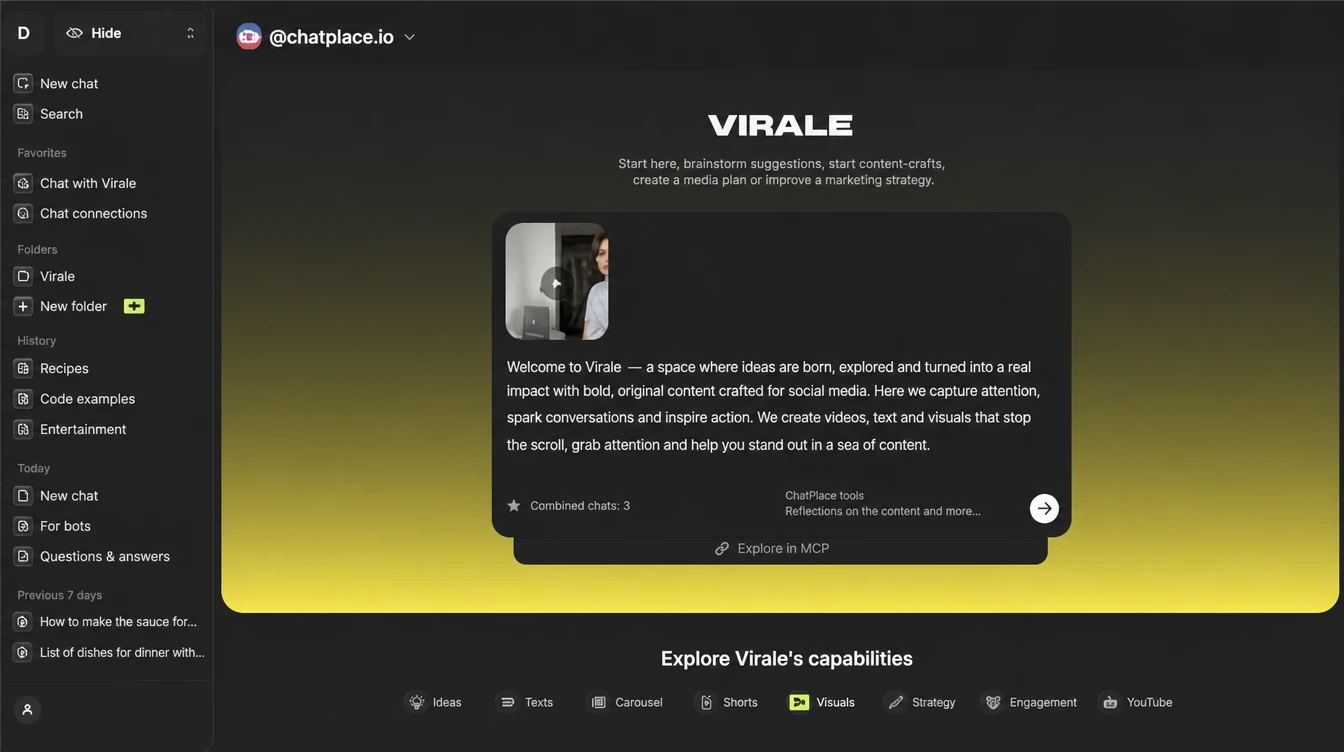
To extend a video with AI, you attach the clip, describe what happens in the new seconds, check the price and ask the agent to stitch the piece to the original. The whole path takes about 5 minutes plus generation time.
- Attach the clip to the chat. Drag the file in or paste it. MP4, MOV and WEBM up to 50 MB are accepted, and the clip must be 4 to 30 seconds long; anything shorter is billed as 4 seconds.
- Describe the new seconds. For example: “Continue the video for 5 more seconds: she turns to the camera and smiles.” For an edit, name one change and add “keep everything else”.
- Attach a photo if you replace a character. A sharp daylight photo with the face large and no filters works best.
- Check the price on the button and launch. The credit amount is on the launch card before anything starts. Until you press the button, no task exists, even if the agent wrote “generating”; the status lives in the gallery tasks.
- Ask the agent to stitch the result. An extension returns only the new piece, so write “Stitch the continuation to the original clip” and compare the result with the source.
If a task fails with an error, the reserved credits come back on their own; a clip that rendered but missed the brief counts as a normal generation.
How to change a video background or swap a face with AI
A background swap and a face swap are the same edit: the background needs only a description, and a new face needs a photo of the person. The common reason for a refusal in both cases is the provider’s moderation on videos with real people, and you see a general “Couldn’t generate the video” message with credits returned.
Since the backend release of September 29, 2026, part of those refusals for video references with real people is gone on all Seedance models, though not on Google Omni Flash. Moderation itself still applies. Three habits raise the chance of passing on the first try:
- One change per request. “Replace the background” passes more often than “replace the background, the outfit and add text”.
- A clean photo and a plain request for faces. Write “replace the person in the frame with the person in the photo” and skip describing the face in words, so the model doesn’t choose between the text and the picture.
- A rewrite after a refusal. Ask the agent to reword the request: refusals sometimes come from the sound or from characters that resemble copyrighted ones.
Putting yourself into a generated clip is a normal use of an AI video face swap. Replacing a real person without their consent is not allowed, and responsibility for the content stays with you. Face reference tips from our AI photoshoot guide apply here as well.
What happens to sound when you extend or edit a video
An edit keeps the original sound unless you order a new track, while an extension creates a new piece whose sound you set separately. Without sound generation the new piece is silent; with it, the AI makes the audio.
There is no exact continuation of the voice or the music from your source. After stitching, each part keeps its own audio track, so a jump in the music at the cut is likely. Three ways to work around it:
- extend a pause, a product shot or a final frame without speech;
- leave the extension silent and lay one music track over the whole clip in your editor;
- for a talking head that must say new lines with lip sync, generate those clips again instead of extending.
Example: a 15-second Reel ends on a speaker’s last sentence. Extend 4 silent seconds of the speaker smiling at the camera and add the call-to-action caption there. Captions and subtitle styles are covered in our AI subtitle generator guide.
How much it costs to edit or extend an AI video
An edit or an extension costs at least as much as generating a clip of the result’s length, and both the source and the result length go into the price. The exact amount in credits is on the launch button. Prices below were checked against the live pricing page.
| What you do | Model | Credits | About, on monthly Creator |
|---|---|---|---|
| 10-second clip, 720p | Seedance Fast | 152 | $2.74 |
| 10-second clip, 720p | Seedance 2.5 | 292 | $5.26 |
| Creator plan, per month | – | 2,500 | $45 |
One credit costs about 1.8 cents on monthly Creator. Note that extending a 25-second clip by 5 seconds can cost noticeably more than making 5 seconds from scratch, because the source length counts too. For long sources, cut the part you need first.
Credits are reserved at launch and charged only for a successful generation, so a failed task costs nothing. More ways to keep the bill down are in our guide to AI video generation without overpaying.
AI video editor or manual editing: comparison
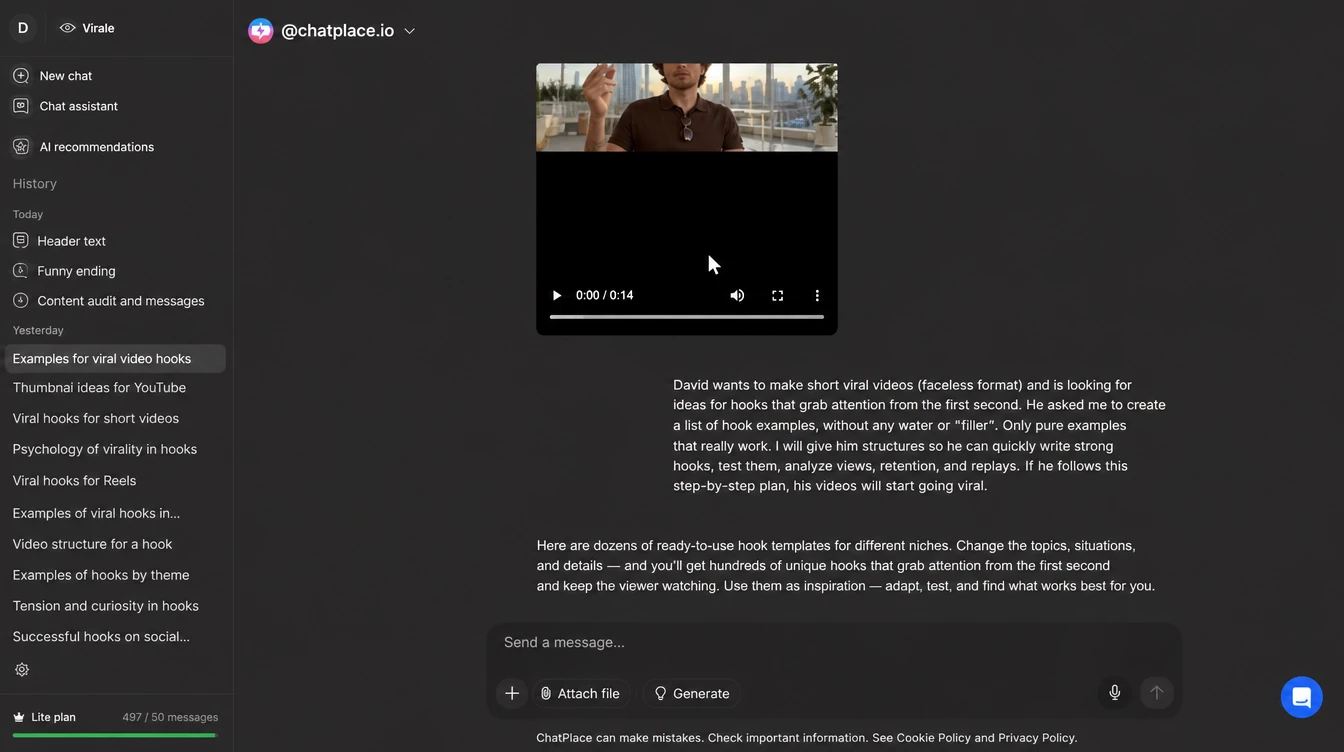
A manual editor gives you frame-level control and needs skill and hours, while editing with AI takes a sentence and a few minutes with the price shown up front. Here is what each route requires:
| Task | In a manual editor | With AI in the chat |
|---|---|---|
| Change the background | Green screen on set or frame-by-frame masking | One sentence, minutes, motion is kept |
| Replace a character | Separate tools and manual fitting | A photo plus a request; moderation may refuse |
| Remove a caption or object | Masking and fill on every frame | “Remove the caption”; precision isn’t guaranteed |
| Add 5 seconds | A reshoot or a freeze frame | A new 4–30 s piece, then stitching |
| Control | Down to a frame | The whole clip at once |
For social media the AI route usually wins; for pixel-perfect masks, use the editor.
Key takeaways
- An AI video extender in Virale adds a new 4–30 second piece before or after your clip, and the agent stitches it to the original on request.
- An edit rewrites the whole clip with words and keeps motion, length and the original sound.
- A 10-second clip on Seedance Fast at 720p costs 152 credits, about $2.74 on monthly Creator.
- Next step: take a clip that is a few seconds short and extend its final frame without speech.
FAQ
Is there a free AI video extender?
There is no free tier for extending or editing video in Virale, because every generation spends AI credits, and on Free or on Pro without a credit balance video tools are switched off. You can try them on the Creator trial, which comes with 500 AI credits. That covers about 3 extensions of 10 seconds on Seedance Fast at 720p, since one costs 152 credits. To activate the trial you link a card, and it is only available to accounts that have never paid for ChatPlace. The price of each generation is shown on the launch button, so you see the amount before credits are reserved, and a task that fails with an error returns them automatically. For example, you can test one background swap and one 5-second extension on the same clip and still keep most of the trial balance for a third try. Start the trial after you sign up for ChatPlace.
How many seconds can AI add to a video?
AI can add from 4 to 30 seconds to a clip in one extension, before or after the original. The new piece comes back as a separate file, so you ask the agent to stitch it to the source to get one video. The source itself has to be 4 to 30 seconds long; a longer clip has to be trimmed first. Seedance 2.5 handles the longest pieces, up to 30 seconds, and the agent may pick it for a continuous shot of 16 to 30 seconds while taking the price into account. If you need a minute of new footage, it is usually better to build a multi-scene video, where the agent can assemble up to 20 scenes with one shared description of the character. For example, a 10-second clip extended twice by 10 seconds gives you 30 seconds, with two cuts to check. Before each launch, compare the price on the button with a fresh generation.
Does an extended video keep the original audio?
An extended piece doesn’t continue the original audio: its sound is set separately, and without sound generation the new seconds stay silent. With sound generation turned on, the AI creates new audio for the piece, but it won’t continue the same voice or the same music track exactly. After stitching, each part keeps its own track, so the join can be audible. An edit works differently and keeps the source sound unless you order a new one. The practical workaround is to extend moments without speech: a pause, a product shot or a final frame where the speaker smiles at the camera. Then lay one music track over the whole stitched clip in any editor, so the cut disappears. For example, a 15-second Reel with a voiceover can get 4 silent seconds at the end for a call-to-action caption. If the new seconds must contain speech with lip sync, generate those clips again.
Can I edit only part of a video with AI?
No, you can’t select a fragment of a video and regenerate only that part, because there is no timeline or track editor in Virale. A request such as ‘replace the background’ applies to the whole clip from the first to the last second. Motion, pacing, format and length stay the same, so in practice the unchanged parts look almost the same as before. If the problem sits in a short stretch, trim that stretch out in any editor, edit or regenerate it as a separate clip, and put it back. For example, if only the last 3 seconds of a 20-second clip show the wrong logo, cut those 3 seconds, ask the agent to remove the logo from that short clip, and join it again. A source shorter than 4 seconds is billed as 4. Google Omni Flash can restyle an uploaded clip of up to 10 seconds, also only as a whole.
Why did my video edit fail moderation?
Video edits fail moderation most often because the provider’s filter reacts to real people, the sound or characters that resemble copyrighted ones. You see a general ‘Couldn’t generate the video’ message, and the reserved credits come back on their own. Since September 29, 2026, part of the refusals for video references with real people is gone on all Seedance models, but not on Google Omni Flash, and moderation still applies everywhere. Three fixes help. Make one change per request instead of three. For a face swap, use a sharp daylight photo with one person in it and write ‘replace the person in the frame with the person in the photo’. If a scene still doesn’t pass, ask the agent in the chat to rewrite the request, since it knows which wording tends to trigger refusals. For example, removing a brand name from the prompt is often enough. A refusal doesn’t cost credits.
What video formats can I upload for editing?
You can upload MP4, MOV and WEBM files of up to 50 MB for editing or extending, and the clip has to be between 4 and 30 seconds long. Attach the file in the chat through the attachment menu, by dragging it in or by pasting it from the clipboard. A clip shorter than 4 seconds is billed as a 4-second clip, and one longer than 30 seconds has to be trimmed before upload. The edit keeps the aspect ratio of the source, so a vertical 9:16 Reel stays vertical. For a character swap, add a photo in JPG, PNG or WEBP next to the video: a sharp shot in daylight with the face large and no filters. For example, cut a 45-second phone video to 30 seconds first, and then the agent can replace the background in one request. The size limit of 50 MB applies to every file.
How much does it cost to change a video background with AI?
There is no fixed price for a background swap: the cost depends on the length of the source and the result and is never lower than a regular generation of a clip of the same length. As of October 20, 2026, a 10-second clip costs 152 credits on Seedance Fast at 720p and 292 on Seedance 2.5 at 720p. On monthly Creator, where $45 buys 2,500 credits, that is about $2.74 and $5.26. The exact amount for your clip appears on the launch button before you start, along with your balance. Credits are reserved at launch and charged only if the generation succeeds. A clip that rendered but doesn’t match what you asked for counts as a normal generation, so each retry has its own price. For example, a second request that names a stray object costs the same as the first. Current rates are on the pricing page.
Can I add myself to an AI-generated video?
Yes, you can replace the character in a generated clip with yourself: attach the clip and a clear photo of you, then ask the agent to put you in the frame. A good request is ‘replace the person in the frame with the person in the photo, keep the motion and the outfit’. This is the normal use of character replacement, and it works on Seedance models, where part of the moderation refusals for real people was removed in September 2026. Use a daylight photo with the face large and no sunglasses, and don’t describe your appearance in words. Plan for 2 or 3 attempts and pick the closest result. For example, a creator can generate a 10-second travel scene and then swap in their own face for a Reel, spending about 152 credits per attempt on Seedance Fast at 720p. Replacing another real person without their consent is not allowed, and you remain responsible for what you publish.

Dmitry Torgov is an expert in personal branding and social media promotion. Co-founder of ChatPlace.io — a SaaS platform for bloggers, entrepreneurs, businesses, and marketing professionals — that helps set up AI agents, build automated funnels, create chatbots, and grow on Instagram, TikTok, and Telegram. Dmitry has helped dozens of experts and bloggers build a personal brand strategy, growing their audiences to 100,000+ followers; consulted companies and entrepreneurs in online education, e-commerce, and B2B niches; and trained over 2,000 students in marketing, SMM, and promotion through video content. “Personal branding is not about views, likes, or quick hype. Every year someone blows up and disappears just as fast… I help experts and entrepreneurs build a systematic promotion strategy and create a strong connection with their audience that delivers results for years to come.”